
I recently received a new developer-class Windows workstation. It’s got a nice fast processor, modern GPU, and 64GB of RAM! The laptop is a significant upgrade over my previous laptop and really speeds up my development tasks. However, I noticed that a few times a week the laptop would become unstable and I would be forced to do a hard restart.
TLDR;
If your Windows system is experiencing instability, especially during video processing tasks, try disabling Hardware Accelerated GPU Scheduling (HAGS). This feature can sometimes cause performance issues or crashes depending on your workload and applications. Follow the steps below to turn it off and see if it resolves your issues.
Troubleshooting
After the laptop became unstable a couple of times, I started troubleshooting the cause and noticed a couple of things:
- Graphics Processing – It seemed to happen when the laptop was processing video: using Teams with multiple video streams, watching a YouTube video, or playing video in a browser.
- System Interrupts – I kept Performance Monitor open and noticed that the System Interrupts process was taking 100% CPU when the laptop would lock up.
Hardware Accelerated GPU Scheduling (HAGS)
Doing research online I discovered a setting that was added to Windows in 2020 called Hardware Accelerated GPU Scheduling. At a high level this feature allows Windows to offload GPU scheduling from the CPU to a dedicated scheduler processor on the GPU. This is intended to improve the performance of graphics rendering.
However, research reveals that the effectiveness of this feature depends heavily on the applications that are using the GPU and how well they handle this scheduling. In fact, in some circumstances it can degrade performance and even cause system instability. I’m a developer and I don’t generally do a lot of work that requires fast graphics performance. System stability is much more important to me, so I tried disabling this feature. With this setting disabled, I have not experienced any system instability for over two weeks.
If you’re having system stability issues that seem related to GPU on your system, you may want to try disabling this setting.
How to Disable HAGS in Windows
To disable Hardware Accelerated GPU Scheduling, follow these steps:
- Open the Start Menu and type
Graphics Settings, then press Enter to open the Graphics Settings window. - Click Change default graphics settings and look for the option labeled Hardware-accelerated GPU scheduling.
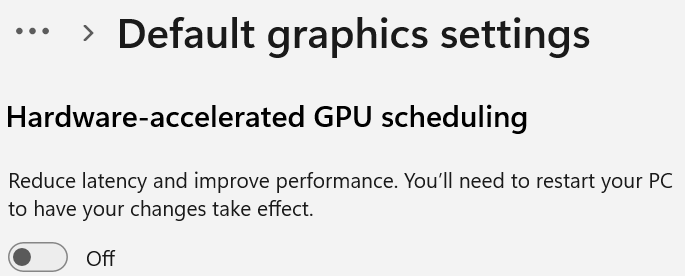
- Toggle the switch to Off to disable the feature.
- Restart your computer to apply the changes.
 Essence of Code